

Welcome to our guide on how to sync your first company using our platform! This step-by-step tutorial will help you get started quickly and efficiently.
Step 1: Create an Account
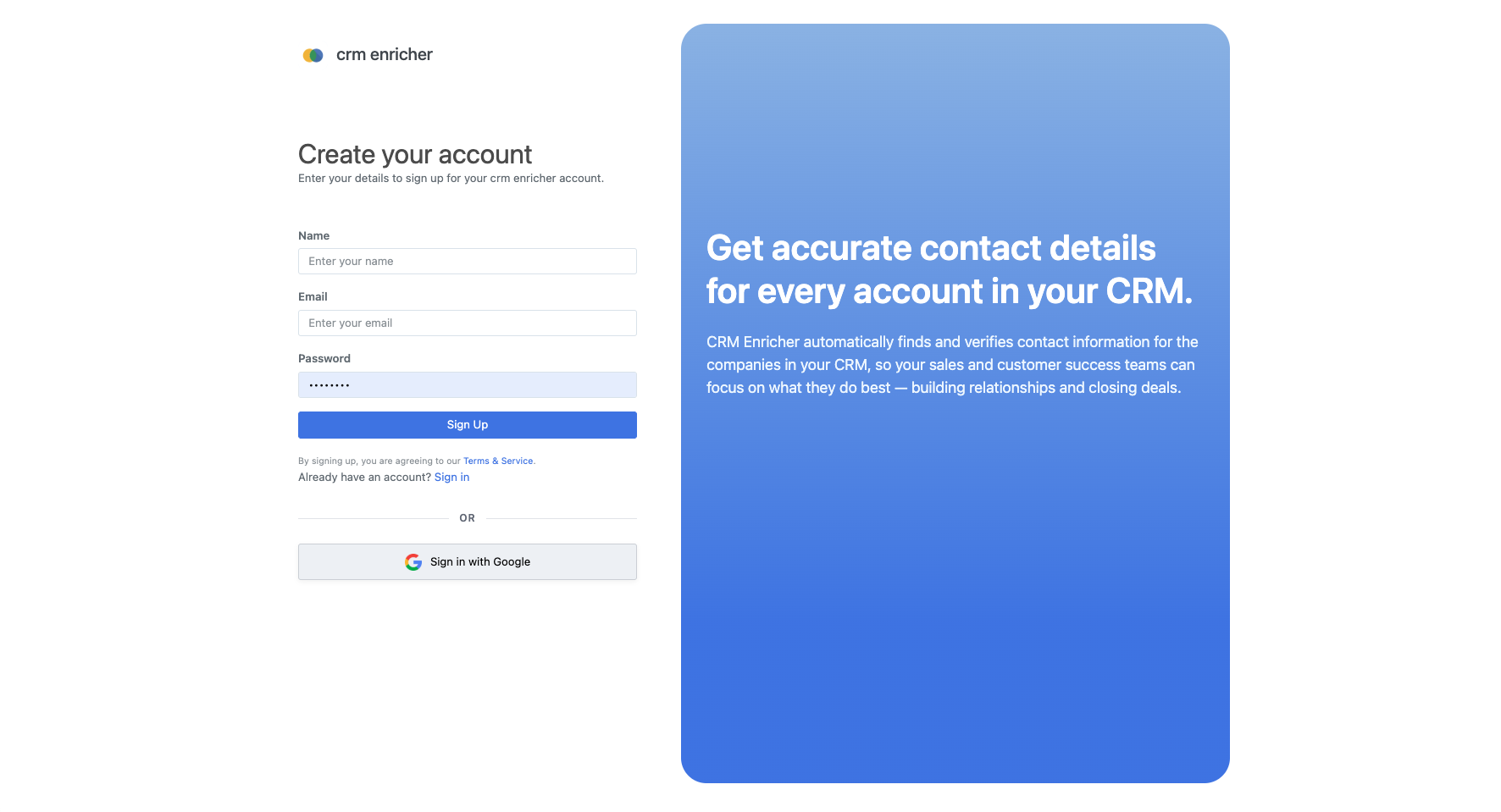
Navigate over to the sign up page and create your account. Fill in your name, email address , and create a secure password. Once you've completed the form, click on the "Sign Up" button.
Step 2: Create an Organization
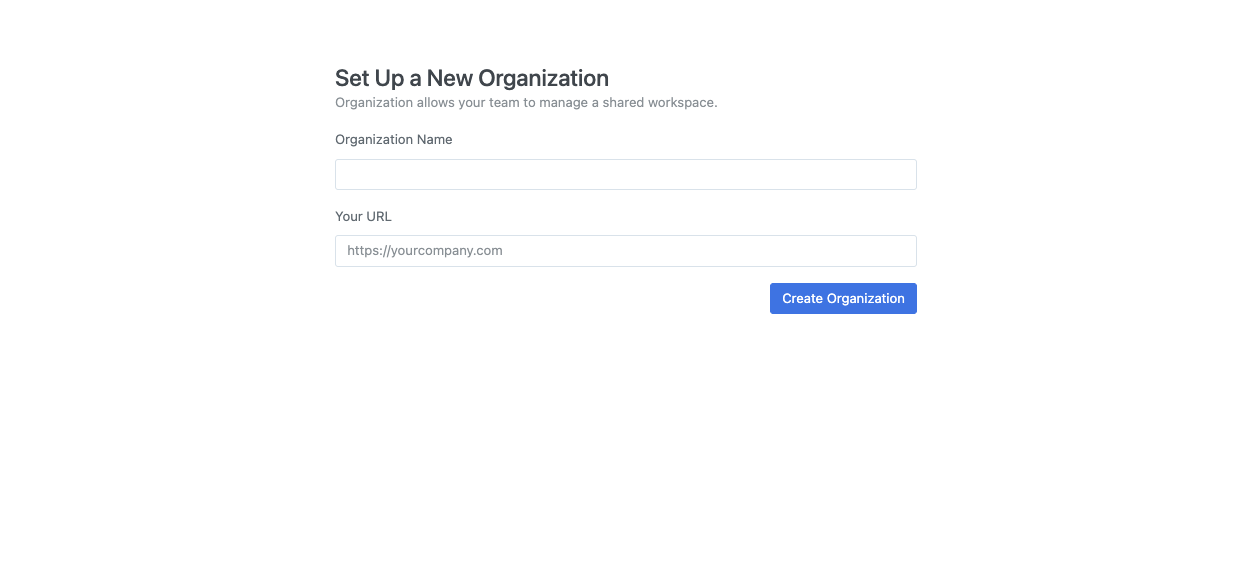
You will be prompted to create an organization. Enter your company name and your domain (e.g., yourcompany.com). Click "Create Organization" to proceed.
Step 3: Onboarding
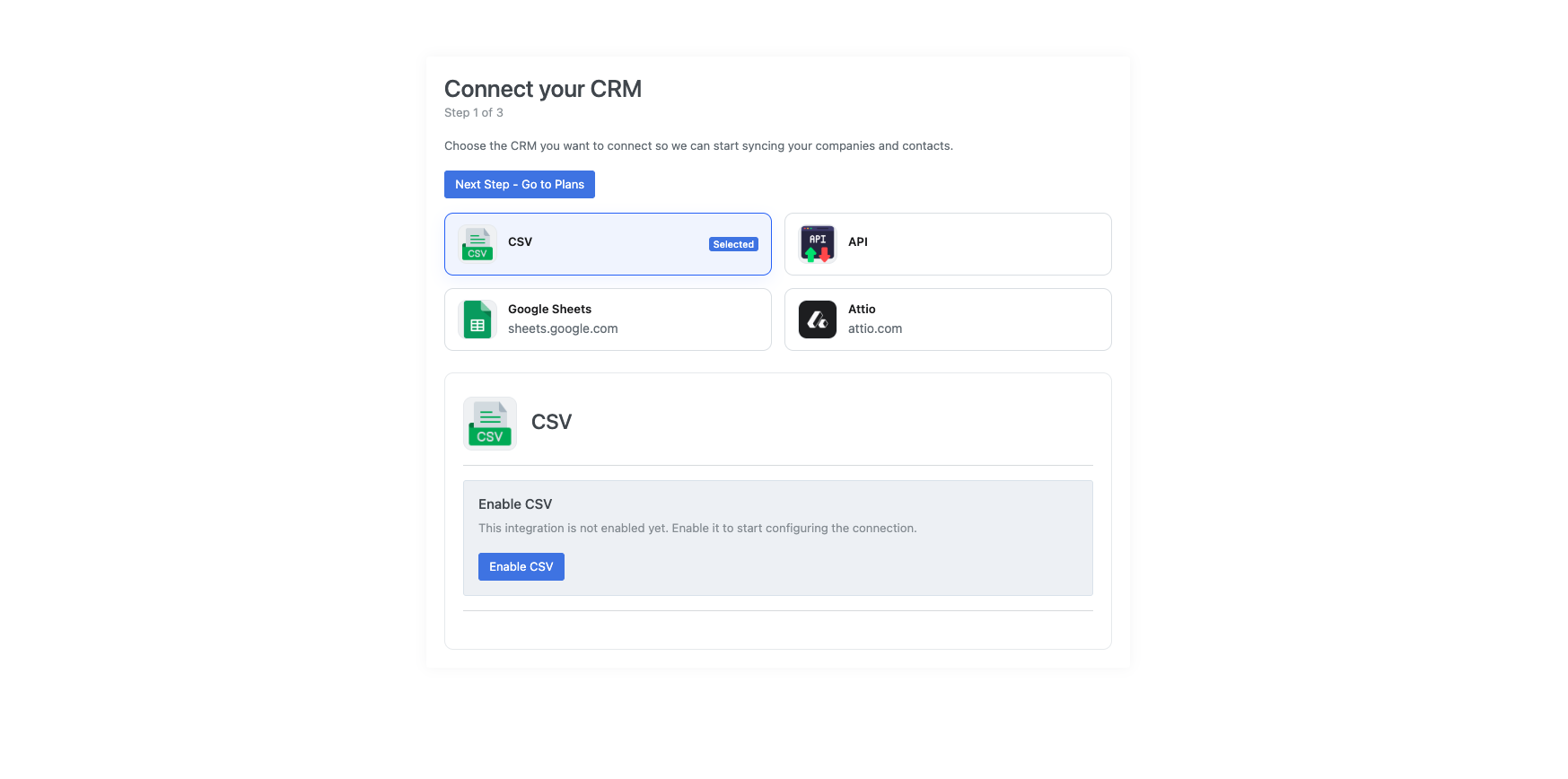
You will be directed into our onboarding flow. For this guide, hit "Next Step - Go to Plans". Hit "Skip for now" on the plans page to proceed to your dashboard.
Step 4: Pull your First Company
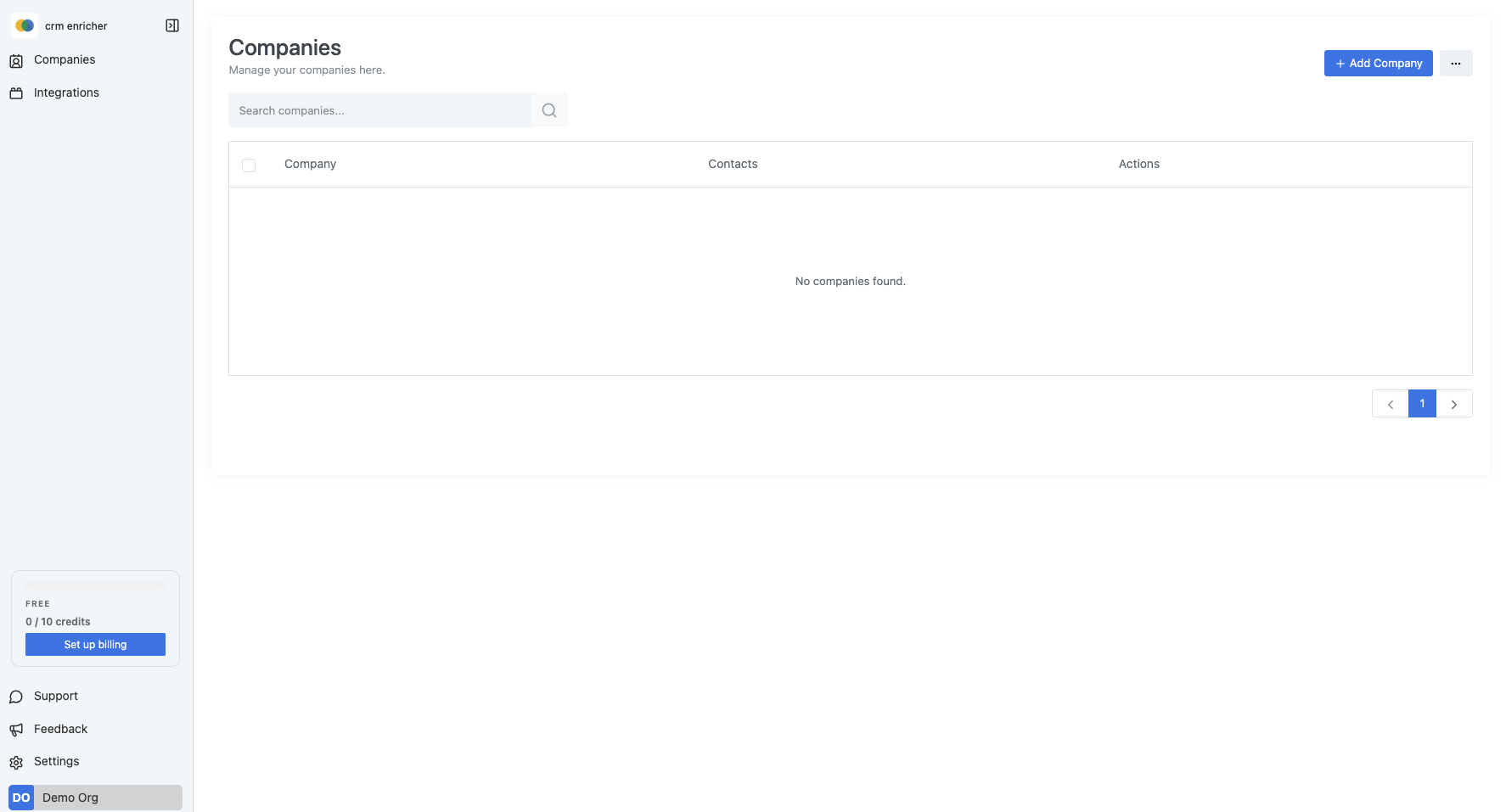
You will be on direct to the "Companies" page. We provide 10 free enrichments (one per company) to get started. In the top right corner, you will see a button label "Add Company". Click on that button to open the "Add Company" modal.
Input the company name and website. Click "Add Company" to proceed.
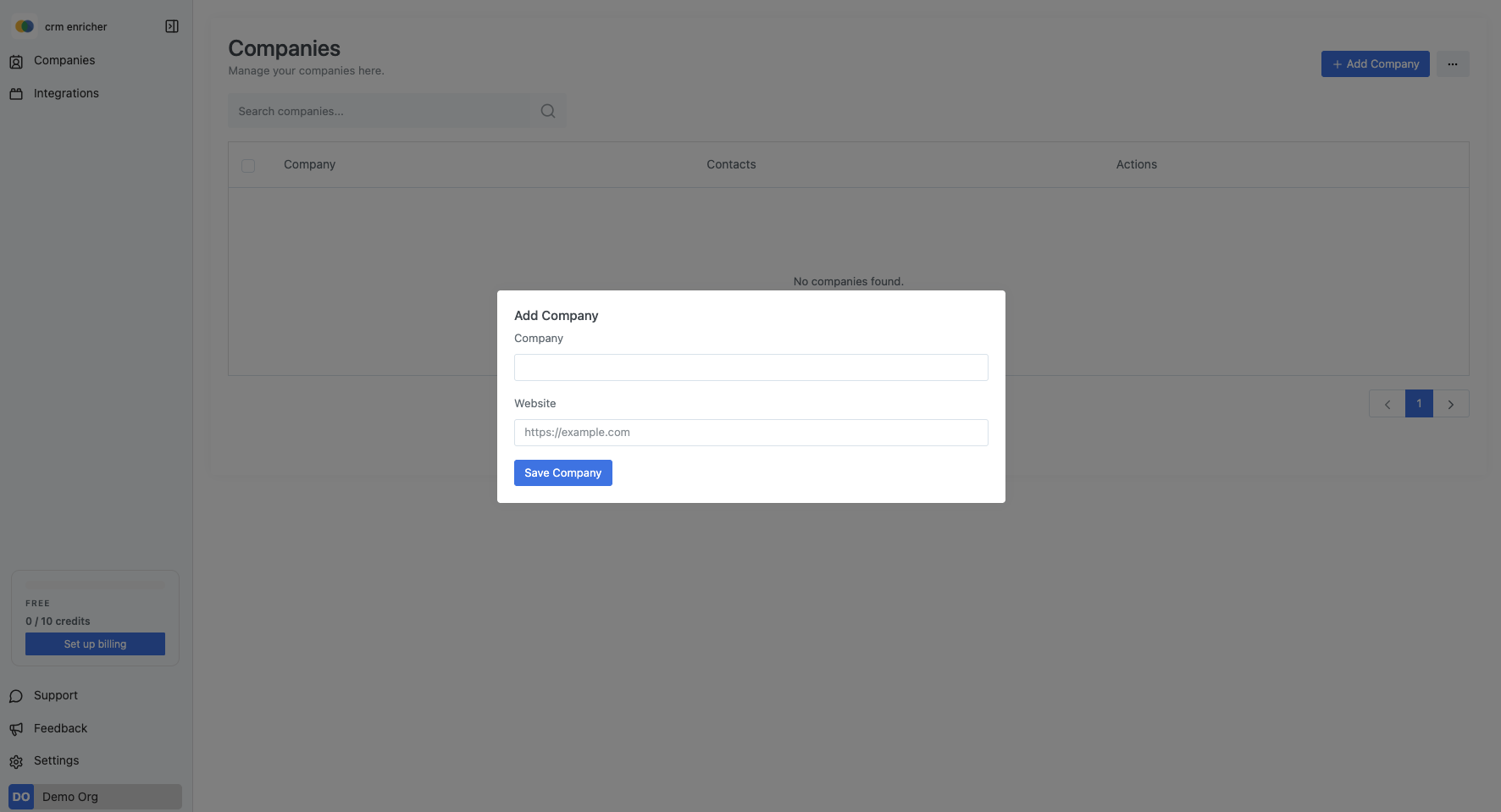
It will add the company to the list and automatically begin pulling in contact information. If it is a company, we are seeing for the first time, it may take longer to enrich. We need to run multiple searches, verify the data we've received, and process it. You can hit the "Notify Me" button to get an email when the enrichment is complete.
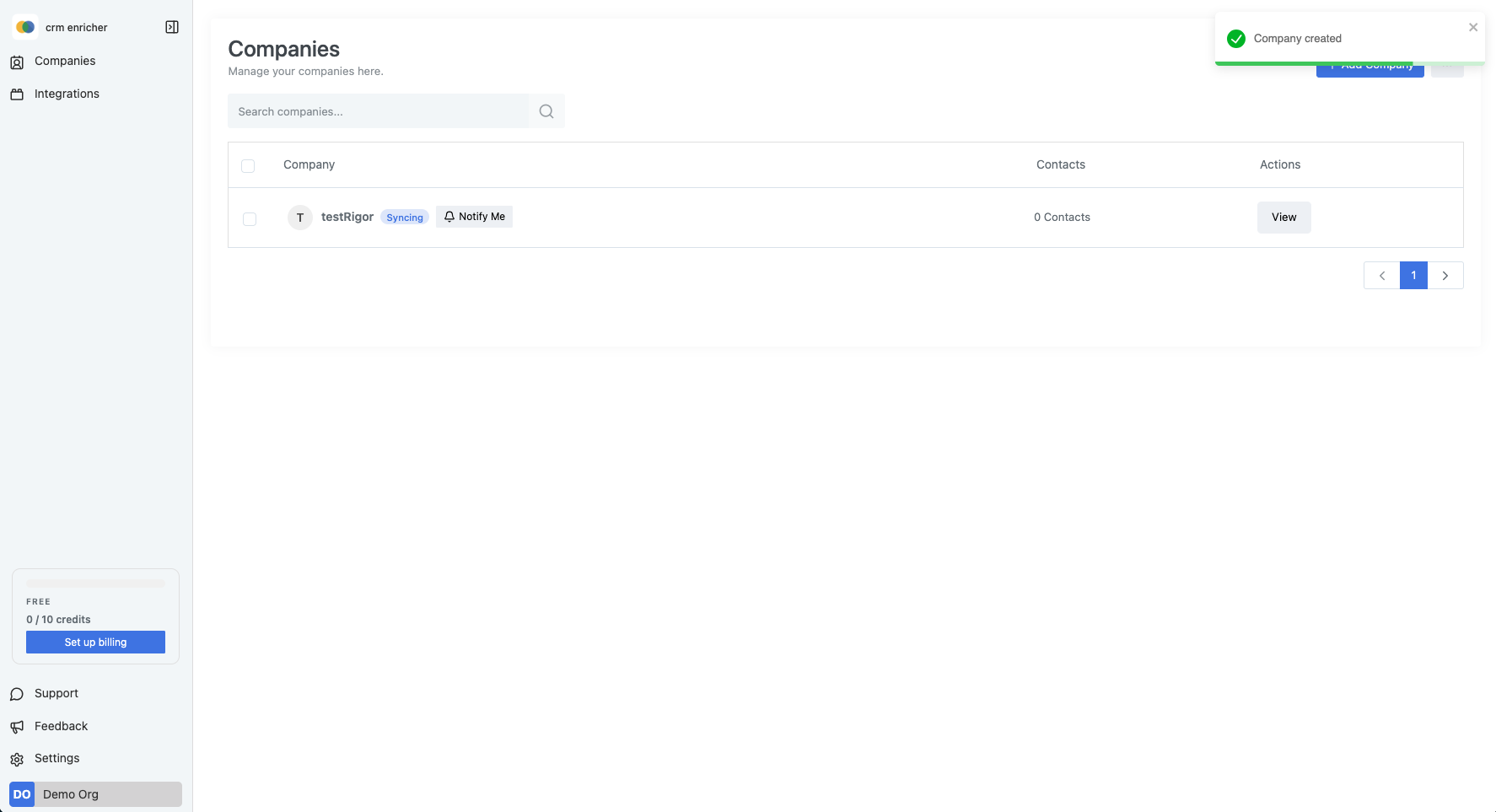
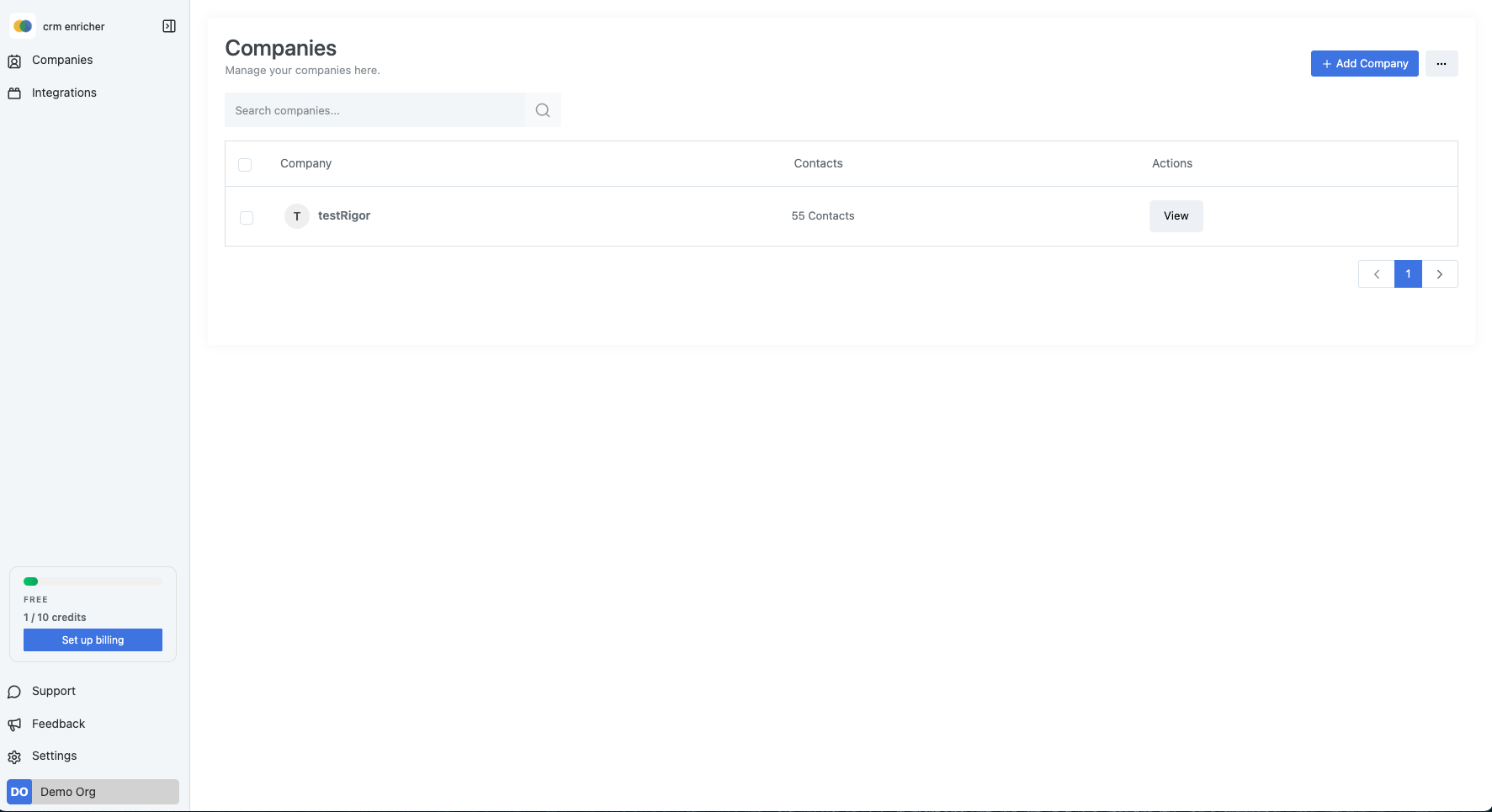
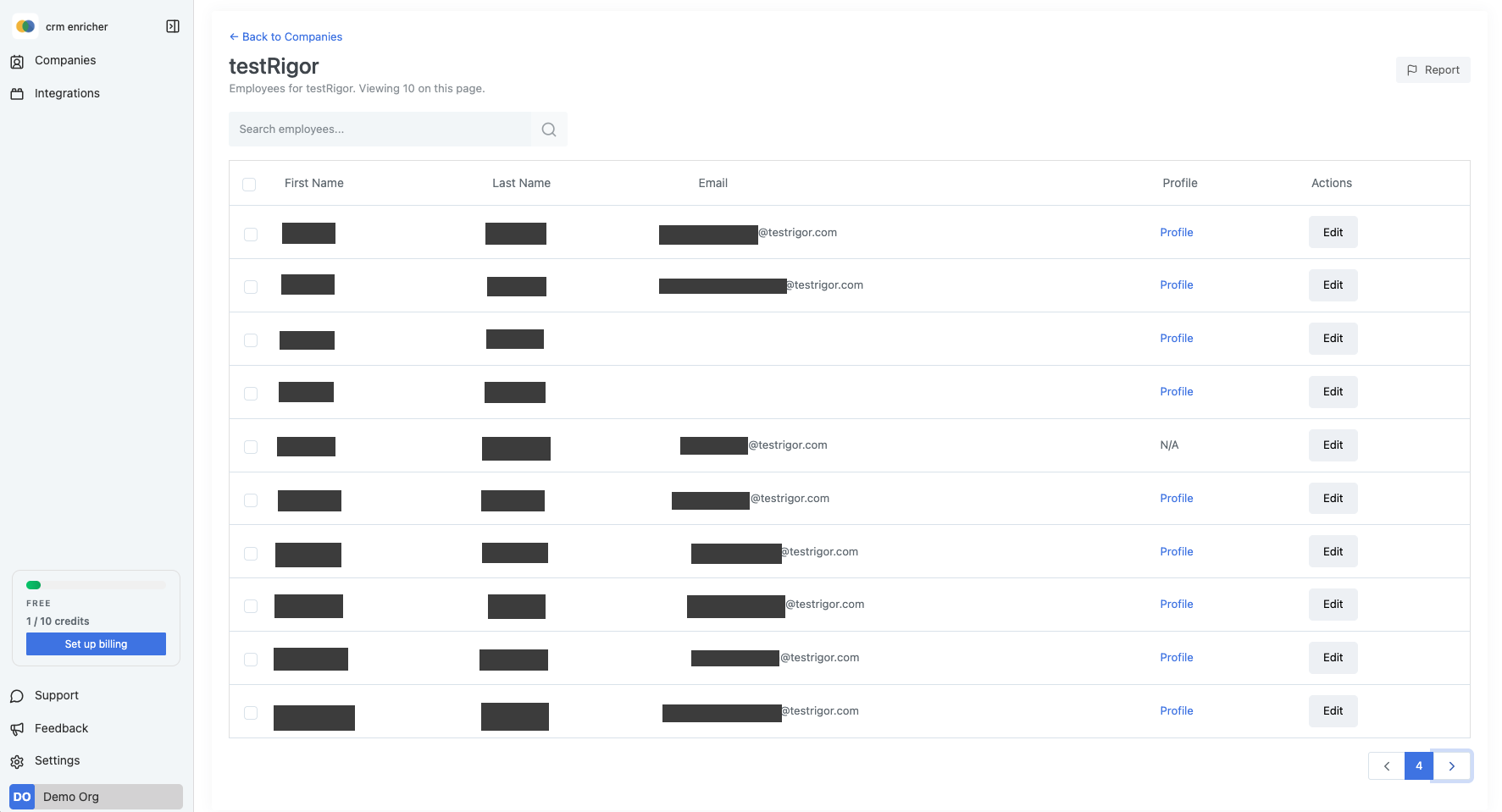
Once completed, you will be able to click "View" on the company to see the enriched data.
Conclusion
Congratulations! You have successfully synced your first company using our platform. You can now explore the enriched data and utilize it to enhance your CRM. If you have any questions or need further assistance, feel free to reach out to our support team. Happy enriching!